

AI Planning for Back-to-School: How Teachers Can Get Ahead Without Working Nights and Weekends
A practical guide to AI lesson planning for teachers: turn standards, pacing guides, and voice notes into clear weekly plans—without late nights. Includes

In this article8 sections
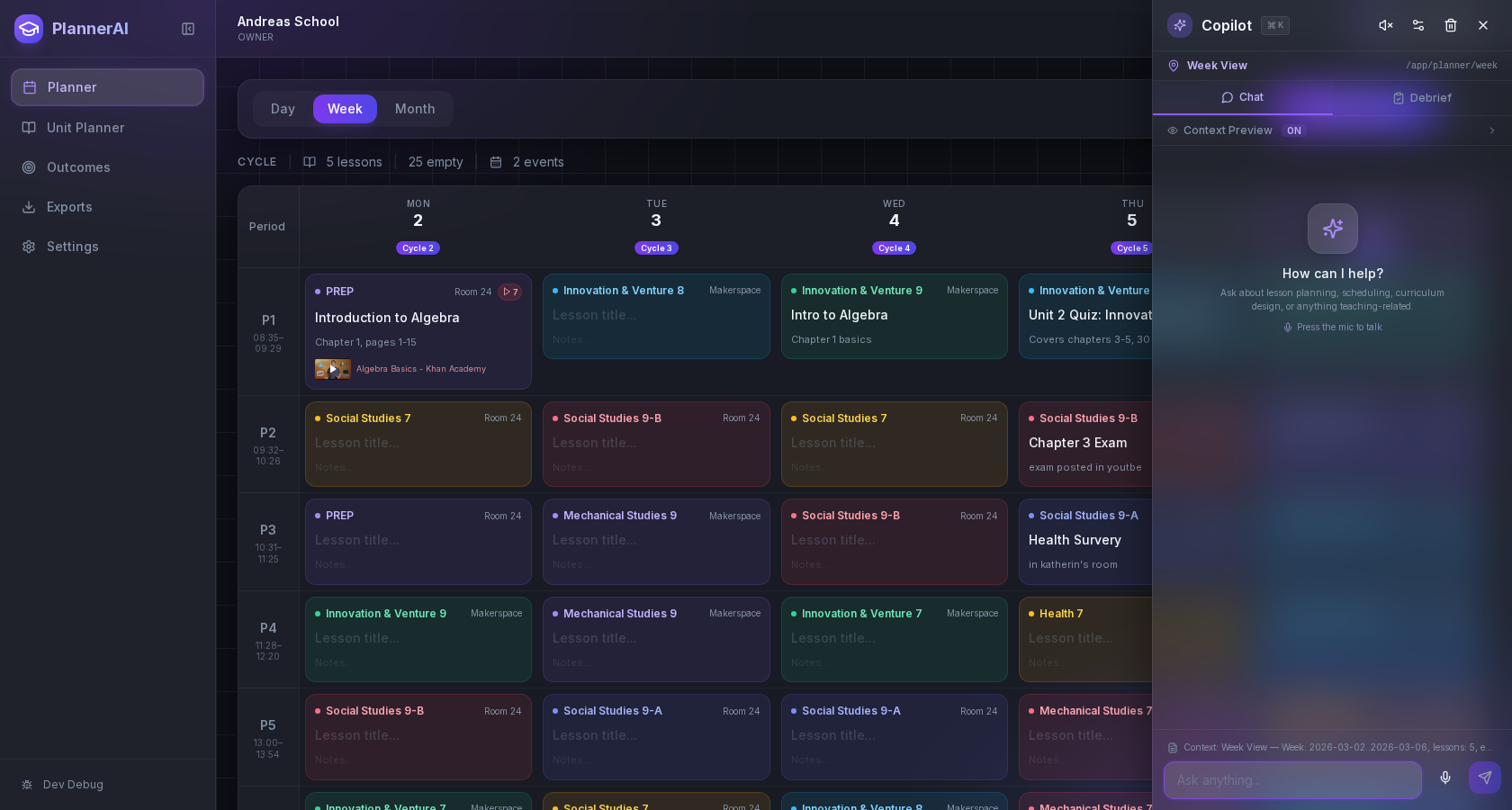
Back-to-school always compresses a month’s worth of decisions into a handful of days. If you’re looking for a way to start strong without spending nights and weekends, AI lesson planning for teachers can help you turn rough unit goals, curriculum standards, and even quick voice notes into usable lesson drafts and realistic weekly plans.
Districts are expanding AI training and expectations this year, and many educators are experimenting with AI already. Education Week reports more schools are offering AI professional learning—though quality and consistency vary—while national organizations are standing up large-scale initiatives to build teacher AI literacy. These shifts make now a smart time to design a planning workflow you can trust and repeat. See: Education Week on the growth of AI PD and quality concerns, ISTE+ASCD’s partnership with Google to provide AI literacy training for up to six million U.S. educators, and recent reporting on K–12 AI adoption trends. Education Week, ISTE, EdTech Magazine, Microsoft Source.
What follows is a practical, classroom-first approach you can adopt during the back-to-school window and keep using all year.
Why back-to-school planning feels overwhelming—even for experienced teachers
The crunch happens because you’re juggling multiple incomplete inputs on a fixed deadline:
- District pacing guides and required assessments that may have changed since last year.
- State standards and local curriculum materials that don’t fully align with your students’ starting points.
- Section schedules, pull-outs, IEP/504 accommodations, and calendar disruptions that fragment instructional time.
- New groups of students with different reading levels, language needs, and prior knowledge.
- Meetings, family communication, and the soft skills of building classroom culture.
AI doesn’t remove any of these realities, but used well it can help you transform scattered inputs into structured, editable plans—fast—so you conserve energy for the parts of teaching that require your professional judgment.
What AI can handle well in the planning workflow—and what teachers should still control
Think of AI as your drafting assistant and options generator. Here’s a clear division of labor that works in K–12:
What AI typically does well
- Converting standards and unit goals into lesson outlines, objectives, and checks for understanding.
- Generating example texts, problem sets, exit tickets, and practice prompts at varied difficulty levels.
- Brainstorming hooks, discussion questions, and accommodations to differentiate for English learners or students with IEP goals.
- Turning loose notes—voice memos, bullet points, or links—into structured drafts you can edit.
- Suggesting pacing options and time estimates when you provide bell schedules or block lengths.
What you should keep in your hands
- Final alignment to standards and required assessments in your district.
- Age-appropriateness, cultural relevance, and the “fit” with your classroom community.
- Accuracy and safety: verify facts, check sources, and watch for hallucinations or bias.
- Data privacy and policy alignment: follow district guidance on account use and student data. Industry groups are urging districts to evaluate policies and privacy commitments before adopting AI tools broadly. See guidance trends summarized in EdTech Magazine. EdTech Magazine.
The goal is not to let AI teach, but to let it accelerate the heavy lifting of planning so you can spend more time preparing high-yield instruction.
A simple 3-step system to turn standards and pacing into a weekly plan
Below is a light-touch planning routine that fits into a single prep block and scales to the entire term.
Step 1: Gather and anchor your inputs
Collect these pieces before you open a planning tool:
- The specific standards or curriculum outcomes you must hit in the next 2–3 weeks.
- Any district-required assessments or performance tasks and their rubrics.
- Your bell schedule, block lengths, and known calendar interruptions (assemblies, field trips, holidays).
- Student needs you already know (IEP goals, reading levels, language supports).
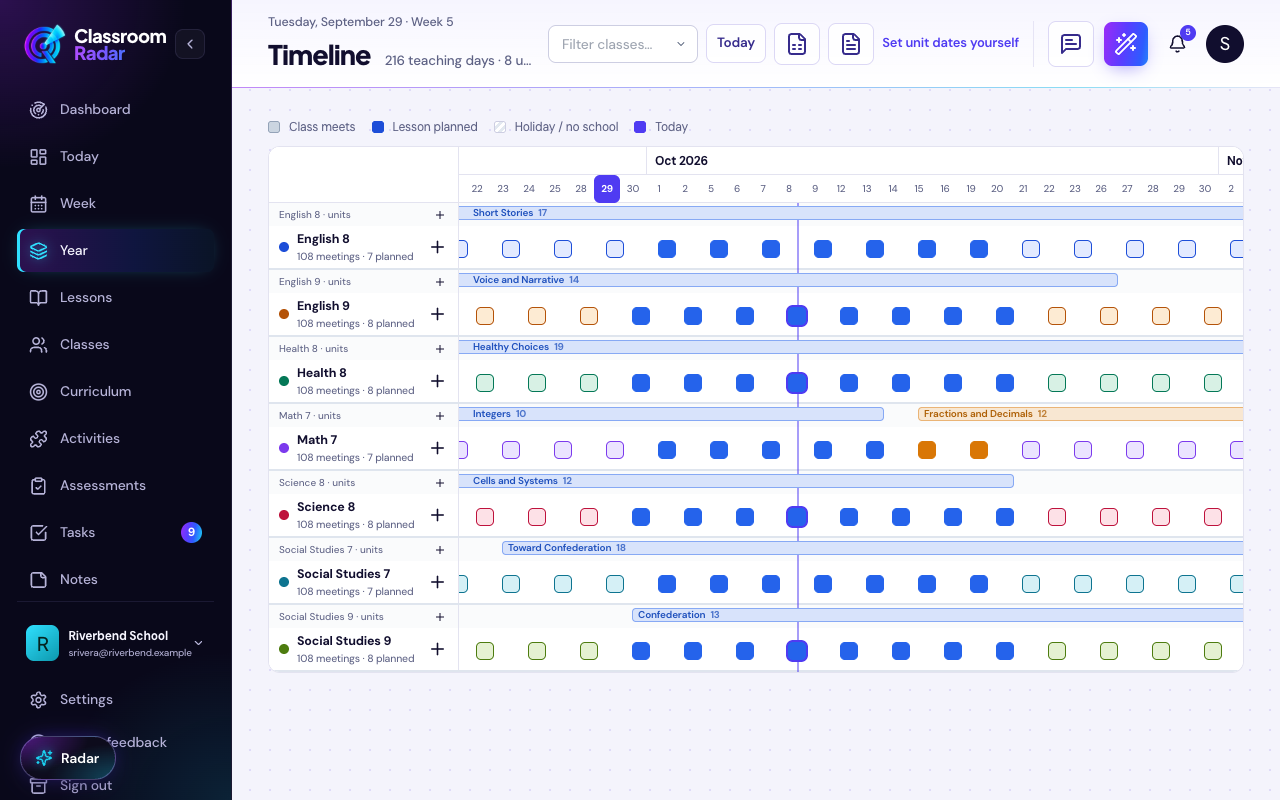
If you prefer a visual organizer, start in a unit map. Classroom Radar’s Unit Planner lets you drop in standards and outcomes before you draft lessons, so everything points at what matters most.
- Practical tip: If standards language is dense, paste it into your AI planner with, “Rewrite these standards as 3–5 plain-language learning goals for Grade X students. Preserve the intent and key verbs.” This preserves rigor while making goals legible for planning and student-friendly framing.
Step 2: Turn those inputs into draft lessons—without starting from scratch
Feed your gathered inputs into an AI planning workspace and ask for structured, editable drafts. If you like to capture thoughts on the go, try speaking them first and let the AI organize them.
- Voice-first capture: If you think best out loud, record a 60–90 second memo on what students should be able to do by Friday. Classroom Radar can transcribe and translate that into objectives, activities, and checks for understanding. Learn more: Voice planning.
- Draft generator prompt (copy/paste):
“You are an instructional planning assistant. Using these standards and assessment requirements, propose a 5-day plan for Grade X [subject/topic]. For each day, include: learning target, success criteria, 10–15 minute segments with time estimates, materials, and a quick formative check. Differentiate for [EL/IEP needs]. Align each day back to the standards. Flag any prerequisite skills students might be missing.”
- Differentiation follow-up: “Regenerate Day 2 with two leveled texts (approx. Lexile A and B) and three sentence frames for academic talk. Keep total class time under 48 minutes.”
- Assessment check: “From this plan, produce a single exit ticket per day with answer key and a 3-level rubric. Keep reading level approximately [grade band].”
From here, keep what’s useful, trim what isn’t, and weave in the materials you already trust.
Step 3: Fit the plan to your week—so it survives the real calendar
AI can propose pacing, but only you know the bell schedule that rules your life. Before publishing your plan for the week, do a fast reality check:
- Add exact minutes to each segment (e.g., 8/12/15/10) and trim or extend activities to match your block.
- Front-load routines and culture moves on Days 1–2 (modeling norms, notebook setup, tech logins), then ramp complexity.
- Mark days with interruptions and convert longer tasks to stations or independent work during shortened periods.
- Pre-plan a buffer task for the inevitable day that runs short or long.
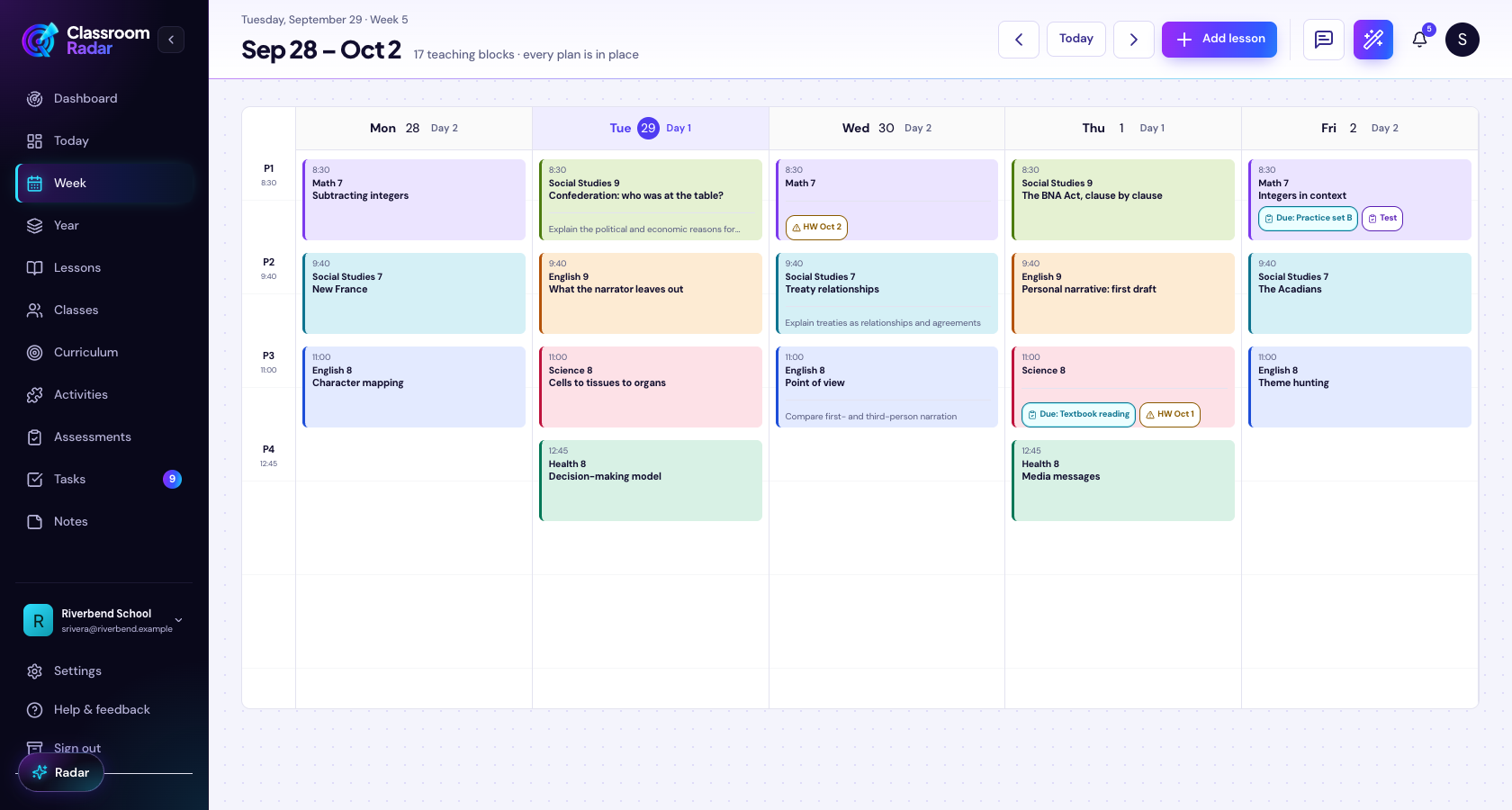
If you like working from a single weekly view, the Lesson planner for teachers in Classroom Radar lets you drag activities across days, see time totals, and publish a clean week-at-a-glance.
How to keep AI output classroom-ready, aligned, and realistic
Even strong AI drafts need a quick polish. Build these guardrails into your routine so your plans are accurate, equitable, and implementable.
1) Use an alignment checklist
- Does each day’s learning target connect back to a standard and your upcoming assessment?
- Do activities actually elicit the thinking the standard demands (analyze, model, argue, etc.)?
- Are success criteria specific and student-friendly?
2) Protect instructional minutes
- Add time estimates to every segment; cap transitions at 2–3 minutes.
- Replace long whole-group lecture with brief modeling + guided practice + quick formative check.
- Save 3–5 minutes daily for exit tickets and clean-up.
3) Differentiate deliberately
- For English learners, include language objectives, visuals or sentence frames, and pair talk.
- For students with IEP goals, note accommodations and any alternate materials.
- For extension, pre-write a challenge prompt that pushes application or transfer.
4) Verify accuracy and age-appropriateness
- Scan any AI-generated content for factual errors, cultural issues, or reading levels that don’t match your students.
- Ask AI to cite sources for nonfiction passages or examples. Replace with vetted materials when needed.
5) Respect privacy and policy
- Use district-approved accounts and settings; avoid pasting student-identifiable information into prompts.
- Industry reporting this fall notes growing adoption paired with a need for support and clear guidance—lean on your district’s policies as you experiment. EdTech Magazine, Microsoft Source.
6) Set a 15-minute weekly maintenance habit
- Friday PM: skim student work and exit-ticket data; tweak the next week’s plan.
- Archive what worked, and save reusable activities to your personal library.
Where Classroom Radar fits: from draft to finished plan to repeatable workflow
You don’t need more tabs. You need a single place where inputs become plans you can actually teach from on Monday. Classroom Radar is built to be that workspace. Here’s how the pieces map to the workflow above:
- Standards and unit goals, organized first
- Start in the Unit Planner to drop in standards and required outcomes. Seeing the map makes it easier to request aligned drafts and prevents scope creep.
- The Outcomes tracker helps you confirm coverage across the term so nothing gets lost.
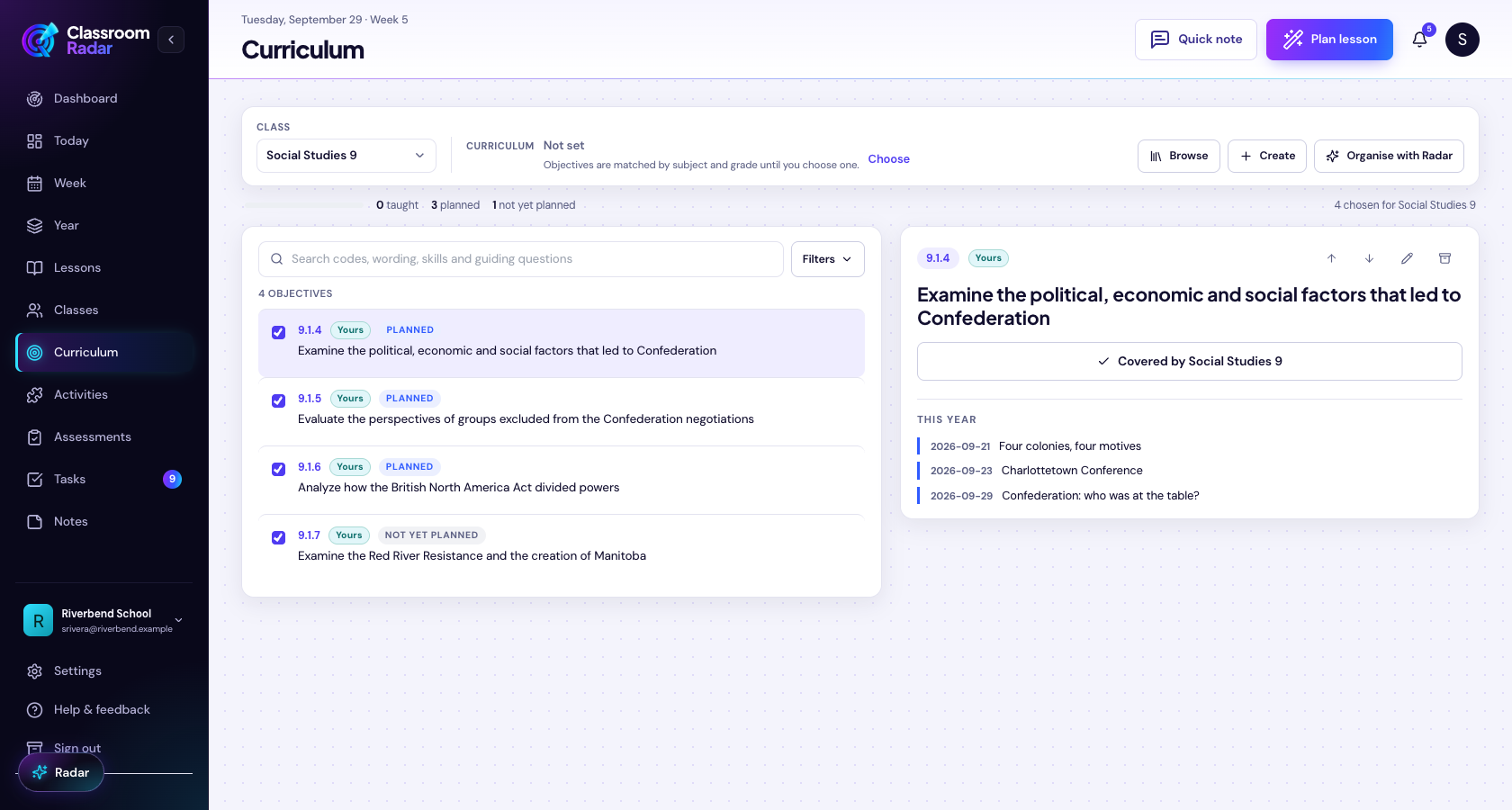
- AI copilot turns ideas into lesson drafts
- Use the AI workspace to transform standards, notes, or past materials into day-by-day lesson outlines and checks for understanding.
- Prefer speaking? Record a quick memo and convert it to an editable plan with Voice planning.
- Week planning that respects real time
- Drag-and-drop activities in the week view to fit your exact bell schedule, with running time totals so plans are realistic.
- When assemblies or fire drills appear, slide segments forward without breaking alignment. Explore the planner: Lesson planner for teachers.
- Activities and handouts without the rabbit hole
- Generate exit tickets, stations, practice sets, and rubrics from the lesson context—without leaving your plan. If you’re producing printable materials or practice worksheets, the Activity Builder streamlines that work. Learn more: Activity Builder.
- Publish, reuse, and share
- Export a clear week-at-a-glance to share with co-teachers, paras, or families.
- Save what worked in your library and reuse it next term—no more reinventing from scratch.
- Designed for responsible use
- Classroom Radar is built for teacher control: you approve every output, can require standards tagging before publishing, and keep sensitive student data out of prompts.
- We follow practical guidance from the K–12 space emphasizing policy alignment and teacher judgment over automation. See sector context in Education Week and EdTech Magazine.
Try this 30-minute back-to-school planning sprint
If you’re new to AI-assisted planning—or just want a fast reset—here’s a simple routine to try before next week:
- 5 minutes: Paste next week’s standards and any required assessment criteria into your AI planner.
- 10 minutes: Ask for a five-day plan with timed segments, checks for understanding, and differentiation for your known student needs.
- 5 minutes: Trim to your bell schedule; add materials you already trust.
- 5 minutes: Generate exit tickets with answer keys; copy to your plan.
- 5 minutes: Sanity check for alignment, reading level, and routines on Days 1–2.
Open your week view, drag segments where they fit, and you’re done. On Friday, spend 10 minutes saving what worked.
The bottom line
The planning challenge has never been about your capacity—it’s about cognitive load and calendar math. AI won’t replace your judgment, but it can shoulder the drafting and formatting so you can focus on skill-building, relationships, and the instructional moves that actually change outcomes. With a standards-first workflow, a weekly reality check, and a few guardrails, AI lesson planning for teachers can help you start the year strong without sacrificing your evenings.
Ready to try it with tools designed for K–12 planning, not just generic text? Explore the Lesson planner for teachers, browse the Features overview, or compare options on Pricing. Prefer a broader look first? Visit the Classroom Radar homepage to see how teachers use Radar from unit map to weekly plan.
Put This Into Practice with Classroom Radar
If you want to turn these ideas into a repeatable planning system, explore Classroom Radar and the connected tools for lesson planning and planning by voice.
