How to set up your teacher planner
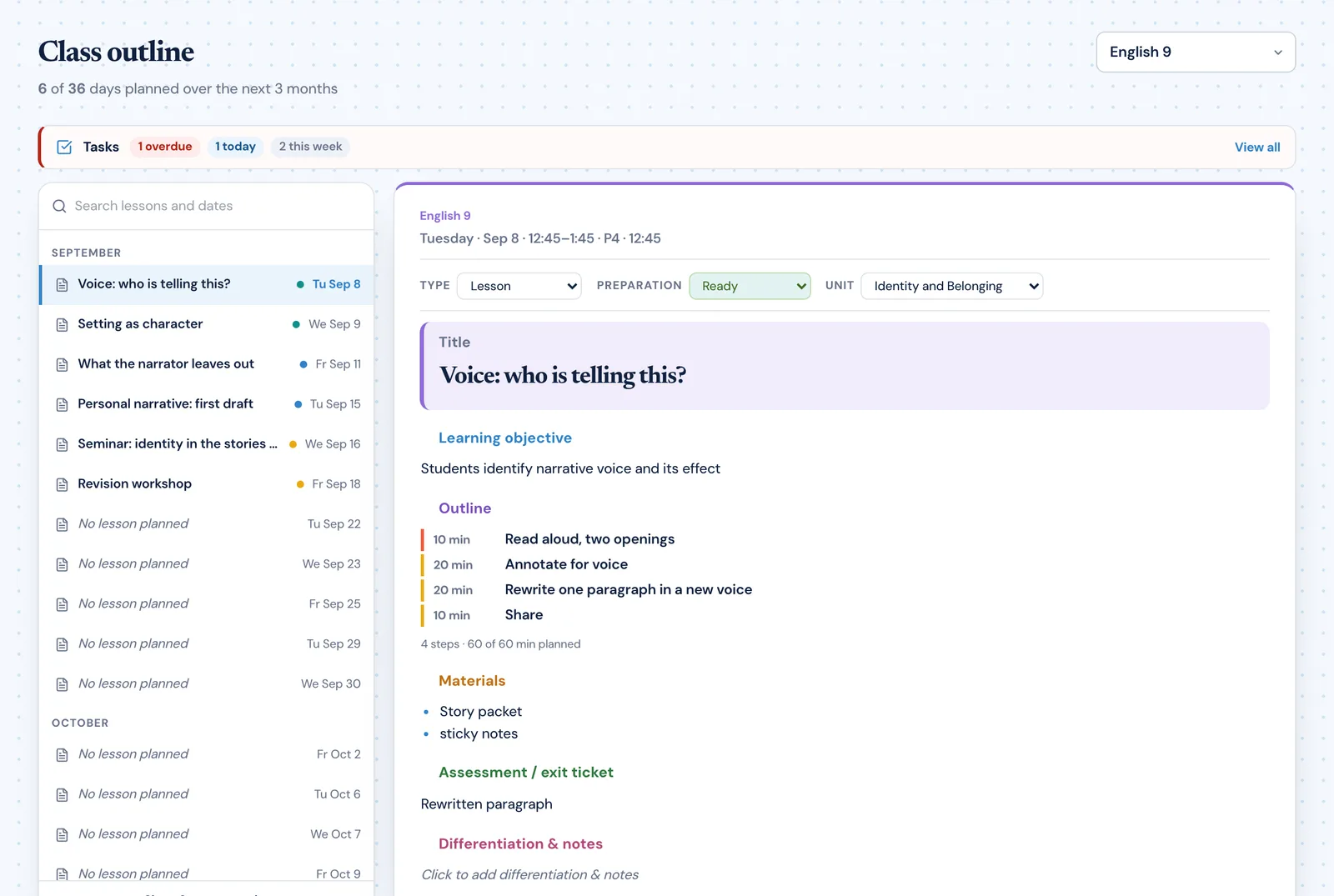
Enter your classes and timetable once, and Classroom Radar plans every lesson on the dates those classes actually meet.
Read the guide CurriculumHow to connect curriculum outcomes to lessons
Choose the curriculum objectives each class covers this year, attach them to the lessons that teach them, and let coverage build itself.
Read the guide Unit PlanningHow to create a unit plan
Build a unit with its guiding questions and objectives, then hold the lessons that teach it in the order you will teach them.
Read the guide AI PlanningHow to use AI to draft a lesson
Radar drafts the sections of a lesson you have left empty, then helps you refine what is there. It never overwrites your own writing.
Read the guide AssessmentHow to schedule assessments and track marking
Put a test on a real class date so it shows on Today and Week, and keep track of how much marking is left.
Read the guide ActivitiesHow to create activity sheets and practice tests
Build a worksheet from the objectives of a lesson, edit any question, and print a Student version and a Teacher version with the answer key.
Read the guide PlanningHow to organize teacher tasks and notes
Keep the photocopying, the forms and the note you wrote after fourth period attached to the teaching they belong to.
Read the guide