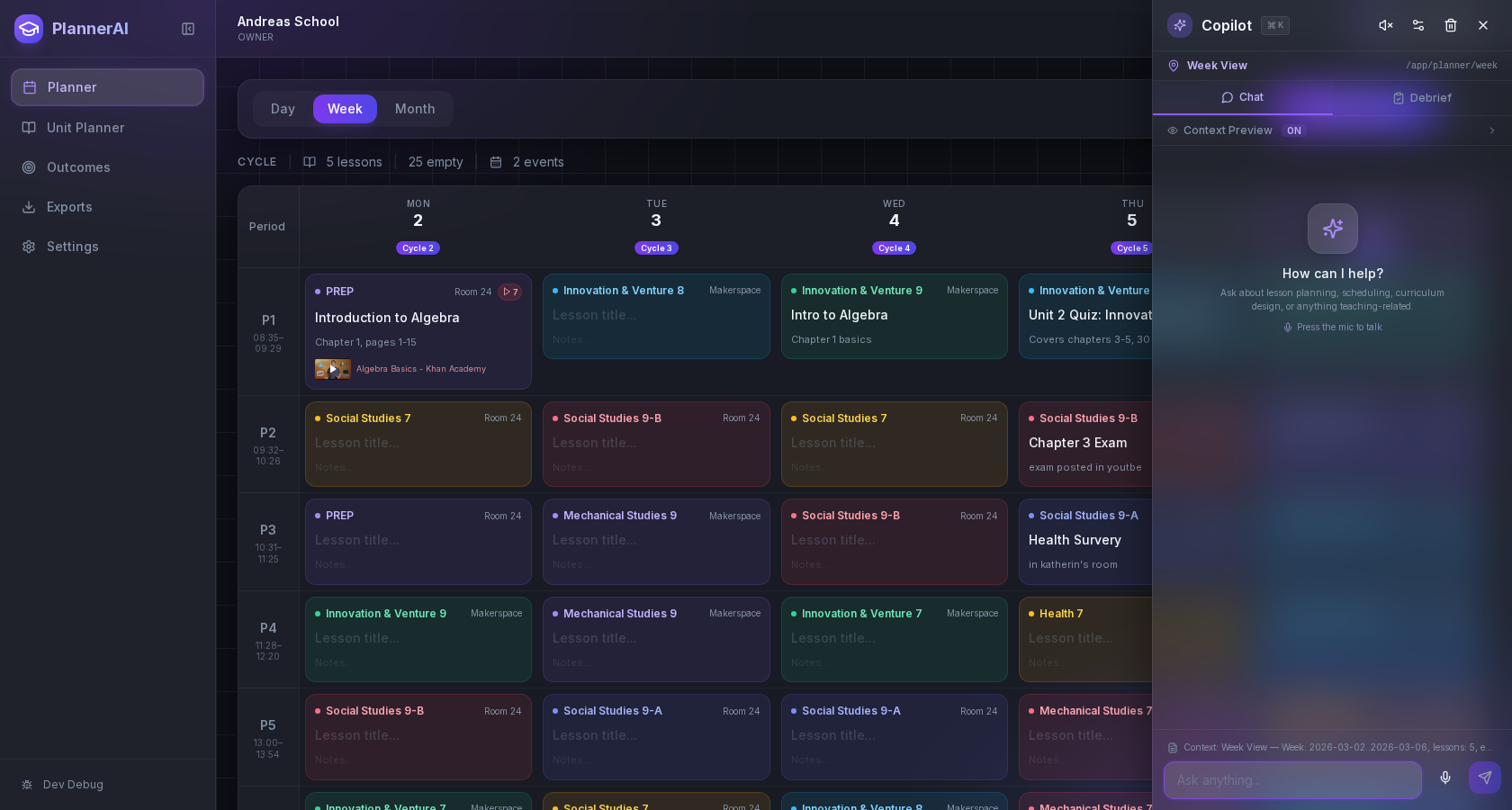

AI lesson planning guardrails to plan faster without losing quality
Practical AI guardrails to plan faster without losing quality. Learn privacy‑safe prompts, review steps, and a 15‑minute lesson plan workflow you can


In this article9 sections
Why guardrails matter in 2026
AI is now part of day‑to‑day planning in many schools, but the stakes are high: instructional quality, student privacy, and public trust. National and international bodies are clear that educators should stay "human in the loop," use AI transparently, and protect students’ data.
The U.S. Department of Education’s Office of Educational Technology recommends human‑directed use, transparency about AI assistance, and attention to bias and accessibility when using AI in teaching and assessment. See the 2023 report, Artificial Intelligence and the Future of Teaching and Learning.
UNESCO’s 2023 guidance for generative AI in education stresses equity, safety, and teacher agency, and calls for safeguards around data, transparency, and governance. See Guidance for Generative AI in Education and Research.
Quality is the other half of the picture. The Education Endowment Foundation’s review of cognitive‑science‑informed approaches highlights strategies—like retrieval practice, worked examples and clear explanations—that are worth preserving when you speed up lesson planning. See EEF’s evidence review (PDF).
Plan faster without losing quality: five guardrails
These five guardrails let you move quickly without compromising what matters.
1) Keep student PII out of prompts
Never include names, DOBs, grades, emails, ID numbers, home language, disability status or any other personally identifiable information (PII). Under FERPA, PII from education records generally can’t be disclosed without consent or a valid exception. See the Student Privacy Policy Office’s definition of PII here.
- Instead of “Write feedback for Jaden who scored 62%,” use “Write feedback for a Grade 7 student who met 4/6 criteria (missed evidence and reasoning).”
- If your district licenses an AI tool, confirm it does not use inputs for training and follows your data‑sharing agreements.
2) Keep a human in the loop
AI can draft options; teachers decide. The U.S. Department of Education recommends human oversight, documentation of AI assistance, and careful use in grading and high‑stakes decisions. See the OET report (2023).
3) Anchor prompts to sound pedagogy
Build effective moves into your prompts: retrieval warm‑ups, explicit modeling, worked examples, guided practice, checks for understanding, and success criteria. These are supported by the EEF’s review of classroom‑relevant cognitive science (2021).
4) Make the process transparent
Record what the AI created, what you changed, and why. A simple note—“AI drafted examples; I replaced #3 and added a bilingual gloss”—supports professional reflection and compliance requests. If you use a planner that links lessons to curriculum outcomes and your real timetable, that record‑keeping is even faster; see our feature overview at /features.
5) Check for safety, bias, and accessibility
Before you publish materials, scan for age appropriateness, representation, reading level, translations or alternate formats. UNESCO’s guidance emphasizes fairness and safety for learners (2023).

A 15‑minute AI lesson plan workflow you can reuse
This repeatable routine keeps you fast and careful. Use any compliant AI assistant; always avoid student PII.
Minute 0–2: Clarify the learning goal
Write three parts: objective, success criteria, and evidence. Example: “Students will compare rates; success = identify unit rate and justify method; evidence = exit ticket with two problems.”
- Optional: include your curriculum code or standard (e.g., CCSS, NGSS, provincial outcomes).
- Tip: If your planner links lessons to curriculum outcomes automatically, paste the standard once, then reuse it; see /lesson-planner-for-teachers.
Minute 2–6: Generate options
Prompt pattern: “Draft a 45‑minute lesson with: 2‑minute retrieval warm‑up (2 Qs), 8‑minute model with worked example, 15‑minute guided practice (group of 3), 12‑minute independent practice tiered at three levels, 5‑minute exit ticket aligned to success criteria. Include teacher talk‑moves and common misconceptions.”
- Ask for 2–3 variations so you can choose.
- Request a materials list (manipulatives, visuals) that fits your room.
Minute 6–10: Triage for quality
Pick the strongest draft. Run a quick review: facts, alignment to your standard, language clarity, and equity (names, contexts, representation). Replace any shaky examples.
- If the content includes claims or contexts you aren’t sure about, ask the AI to provide sources, then verify them, or substitute your own.
- Keep a short note of edits (what/why) for transparency.
Minute 10–13: Tighten and differentiate
Prompt pattern: “Differentiate the independent practice into three pathways: Core (on‑level), Stretch (faster pace), and Support (scaffolded with sentence starters). Keep success criteria constant.”
- Ask for a bilingual glossary or visuals if needed.
- Generate a one‑minute reteach mini‑script for a likely misconception.
Minute 13–15: Package materials
Prompt pattern: “Create an exit ticket (2 items) exactly aligned to the success criteria; write a brief rubric with 3 levels.”
- Export/print what you’ll actually use. If your planner builds printable activities for you, you can move straight from the draft to class‑ready materials; see /features.
- Add the final checklist below to your routine.

Prompt patterns you can copy (and adapt quickly)
Paste these into your assistant, then add your subject, grade and standard. Never include student PII.
Unit map to standards
- Prompt: “Map a 3‑week unit to [standard code]. For each lesson, list: objective, success criteria, retrieval target, worked example idea, practice format, and exit ticket focus.”
Retrieval warm‑ups
- Prompt: “Generate four 1‑minute retrieval questions that spiral last week’s content and today’s prerequisite idea; include quick answer key.”
Model + worked example
- Prompt: “Write a short teacher think‑aloud that models [skill], with one worked example and one ‘my turn/your turn’ example.”
Guided to independent practice
- Prompt: “Create 6 practice items at three tiers (Support/Core/Stretch), same success criteria, varied scaffolds.”
Exit ticket + rubric
- Prompt: “Write a 2‑item exit ticket aligned to the success criteria and a 3‑level rubric: Beginning/Proficient/Advanced (clear, brief descriptors).”
Family‑facing summary
- Prompt: “Draft a 3‑sentence family update about what students learned today, how you’ll check understanding next time, and how families can help at home—no jargon.”
If you’d like more background on evaluating AI lesson planners, see our explainer What to Look For in an AI Lesson Planner.
Five‑minute quality check before you hit print
Run this quick pass so AI outputs meet your standards.
- Alignment: Does each task match the objective and success criteria? Remove any extras that don’t serve the goal.
- Accuracy: Spot‑check any new facts, contexts, or data with a trusted source—or replace them.
- Accessibility: Check reading level, fonts/contrast on handouts, alt text for images, and availability of translations or visuals when appropriate.
- Representation and safety: Scan names, contexts and examples for balance, inclusion, and age appropriateness. Avoid stereotypes or sensitive scenarios without purpose and support.
- Assessment: Ensure your exit ticket directly tests success criteria and that your rubric language is student‑friendly.
- Transparency: Add a one‑line note: “AI assisted with draft; teacher revised examples and rubric.”
These checks reflect the emphasis on human oversight, transparency and equity in both U.S. and UNESCO guidance (OET 2023; UNESCO 2023).

Make it work at the school level
Teachers move faster when the system supports them. Three ways to scale guardrails.
1) A one‑page staff guide
Cover: do‑not‑enter PII (names, IDs, contact info, health/IEP details), where AI is allowed (planning, exemplars), where it isn’t (grading final work unless policy allows), how to cite AI assistance, and who approves new tools. Point staff to the official FERPA/PII explainer here.
2) Shared checklists and templates
Adopt the 15‑minute workflow and quality check above. Store templates in your planner or shared drive so everyone edits the same living documents. If you need a tool that maps lessons to standards on your real timetable (including rotation days) and turns drafts into printables, see the feature overview at /features or compare options at /lesson-planner-for-teachers.
3) Leadership alignment
Align with district guidance and trusted K–12 IT organizations. CoSN’s K–12 AI resources and readiness tools can help leaders translate principles into workflows; see CoSN’s AI guidance page.
When your workflows, prompts and checklists are shared—and your records show how AI was used—you can plan quickly, teach confidently, and answer questions from families and leaders with evidence.
Frequently asked questions
Can I put student names or grades into an AI prompt?
No. Treat student names, grades, emails, ID numbers, DOBs, IEP details and other PII as off‑limits in prompts. FERPA protects PII in education records; use anonymous descriptors instead and follow your district’s approved tools and data‑sharing agreements.
What should I add to an AI‑generated lesson plan to make it stronger?
Add your success criteria, the exact misconceptions you see locally, and examples that match your students’ experiences. Tighten reading levels, add visuals or sentence frames as needed, and ensure the exit ticket directly tests your goal.
Is it OK to use AI for grading?
Use caution and follow policy. U.S. federal guidance emphasizes human oversight and transparency, especially for high‑stakes decisions. Many schools allow AI to draft rubric language or comment banks, but require teachers to make final grading judgments.
How do I explain AI use to parents or my principal?
Be clear and brief: what AI did (drafted options), what you did (selected, edited, verified), and how student privacy was protected (no PII, approved tools only). Keep a note of edits and your final checks so you can show your process.
Which parts of lesson planning are safe to automate?
Idea generation, example drafting, scaffolds, question sets, and rubrics are great candidates—if you verify alignment and accuracy. Keep professional judgment at the center for pacing, modeling, and assessment decisions.
What if my district hasn’t approved an AI tool yet?
You can still use the workflow with non‑sensitive prompts on approved devices, exporting only what you write yourself. Do not paste any student data, and verify outputs for quality. Ask leaders for an approved tool and a one‑page guardrail guide.
Guardrails make speed sustainable
With a few clear boundaries—no PII, human review, evidence‑aligned structure, transparency, and quick safety checks—you can plan faster without losing quality. Start with the 15‑minute workflow, adapt the prompt patterns, and keep a short edit log. Your future self (and your students) will thank you.
Want a planner that maps your lessons to outcomes on your real timetable and turns drafts into printables—with an assistant built in? Try Classroom Radar here.
Sources and further reading
- Artificial Intelligence and the Future of Teaching and Learning: Insights and Recommendations (May 2023) — U.S. Department of Education, Office of Educational Technology
- Guidance for Generative AI in Education and Research (2023) — UNESCO
- Cognitive science approaches in the classroom: A review of the evidence (2021) — Education Endowment Foundation
- Personally Identifiable Information for Education Records (FERPA) — U.S. Department of Education, Student Privacy Policy Office
- Artificial Intelligence in K‑12 Education | CoSN Guidelines — CoSN (Consortium for School Networking)